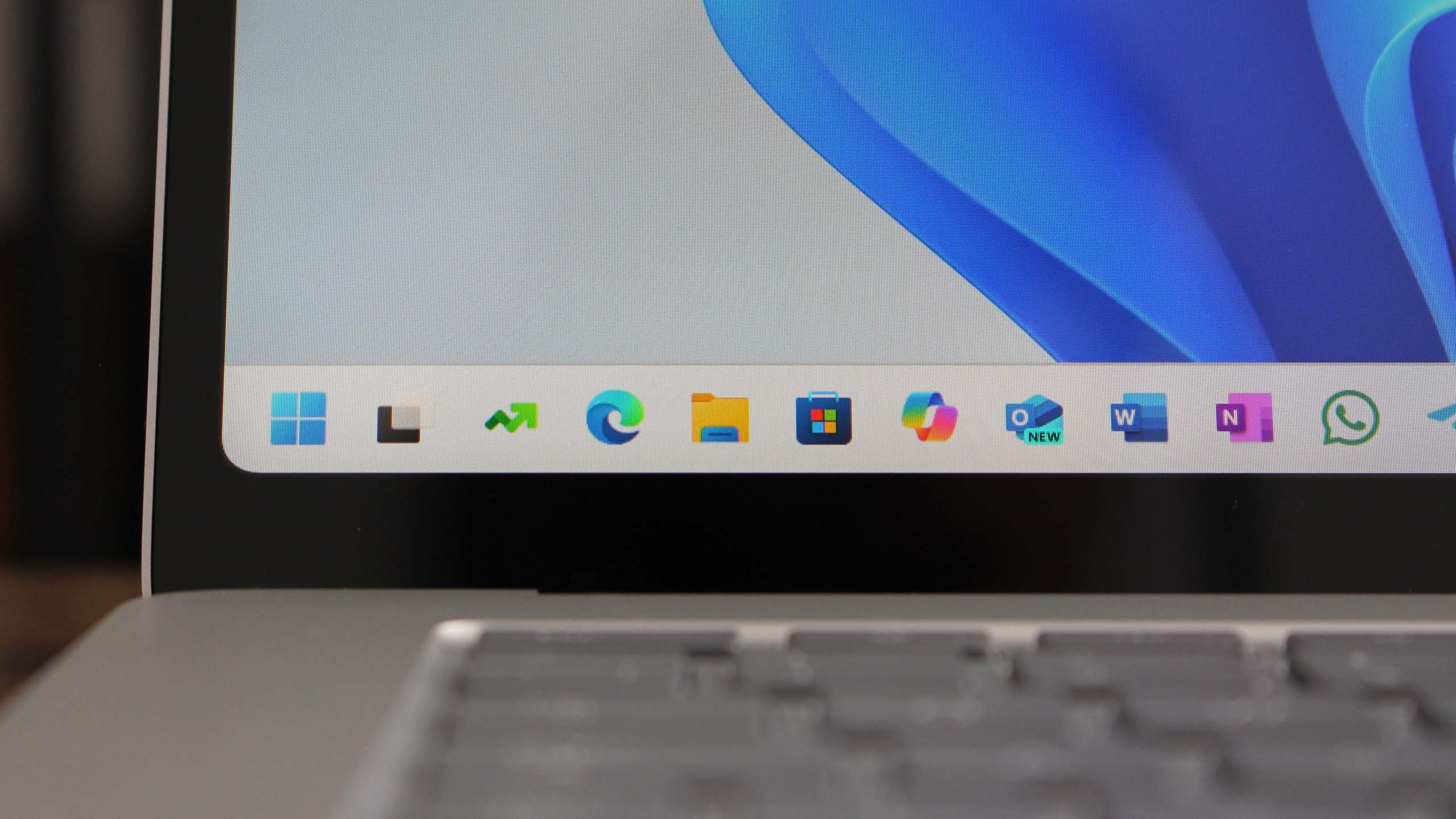
Security aside, 11 is a downgrade from 10. So many features removed. So many things not fixed. Networking is still a pain with Windows. Updates routinely turn off network discovery for example. With 10 you could resize your taskbar etc.
Still many computers that can't upgrade because of the bios. My little "Acer One 10" can't which is why I turned off wifi.
Anyway, we have no choice. Either upgrade or turn off networking .... On purpose i mean! lol
I haven’t personally had any problems but am aware that many people do . As for the taskbar you can choose from three different sizes. Settings , personalization , scroll down to taskbar behaviours and there should be a taskbar size drop down . Found this of course…..
Yes, there are known issues with Network Discovery in Windows 11 that users commonly face. Problems include computers not showing up on the network, network shares not being visible, and intermittent failures of network discovery and file sharing even when settings appear correct.
Key causes and issues reported are:
• Network profile set to Public instead of Private, which disables network discovery by default.
• Network Discovery and File Sharing settings not enabled or resetting unexpectedly.
• Windows services required for discovery (Function Discovery Resource Publication, SSDP Discovery, DNS Client, UPnP Device Host) not running.
• Firewall or third-party security software blocking network discovery traffic.
• SMB protocol issues or misconfiguration affecting visibility of shared resources.
• Outdated or corrupted network adapter drivers causing discovery failures.
• Windows updates sometimes breaking local network connectivity or sharing.
• Intermittent network discovery failures where devices disappear and reappear unpredictably.
Common fixes recommended include:
• Setting the network profile to Private in Settings > Network & Internet > Properties.
• Enabling Network Discovery and File Sharing in Advanced Sharing Settings.
• Starting and ensuring dependency services are running via `services.msc`.
• Checking and configuring firewall rules to allow network discovery traffic.
• Resetting network adapters and network settings (via Settings > Network & Internet > Advanced network settings > Network reset).
• Updating or reinstalling network drivers through Device Manager.
• Restarting the PC after changes to apply settings properly.
• Ensuring SMB protocol is enabled if sharing files.
In summary, while Windows 11 supports network discovery, users frequently encounter issues due to settings, services, firewall, driver, or update-related problems. These issues can often be resolved by verifying network profile, enabling discovery and sharing, checking services, resetting network adapters, and updating drivers.